When it comes to the best logo size for Shopify, the sweet spot is around 200 x 100 pixels. This gives you a nice 2:1 aspect ratio that works well in most headers. However, to keep things looking razor-sharp on high-resolution screens (like retina displays), it’s smart to upload a version that’s at least double that size, but stay under the maximum of 450 x 250 pixels. This trick ensures your logo is always crisp without dragging down your site’s speed.
Your Complete Shopify Logo Size Reference
Nailing your logo size is about more than just aesthetics; it's a core part of your brand's consistency and your store's performance. Get it wrong, and your logo can look blurry, stretched, or pixelated—instantly hurting your professional image. Go too big, and you’ll slow down your page load times, which frustrates visitors and can even ding your SEO rankings.
This guide is your quick reference for getting it right every time, covering every spot you'll need to place a logo on your Shopify store.
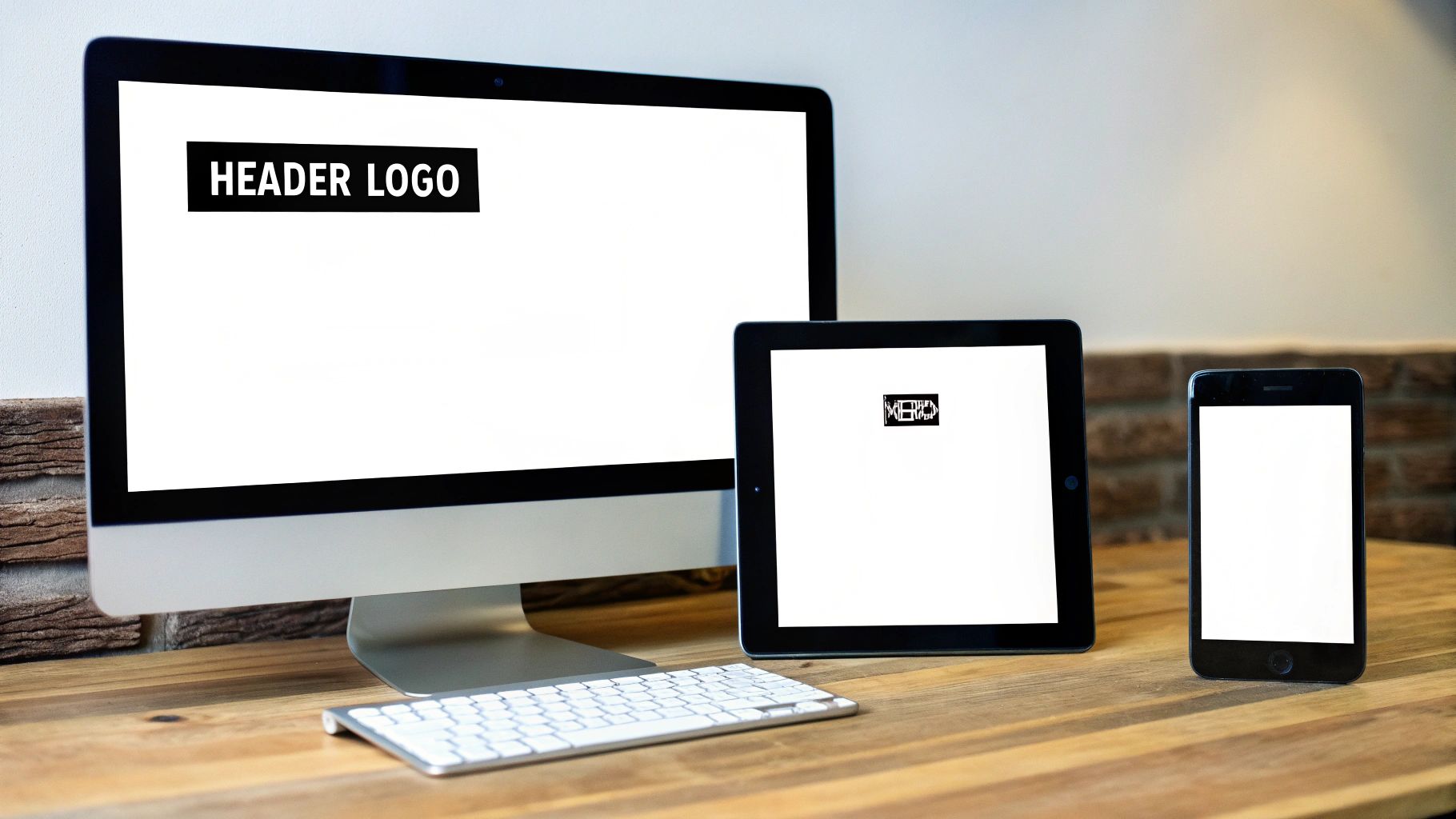
The image below breaks down the three main places your logo will live: in your site's header, as a favicon in browser tabs, and on social media previews.
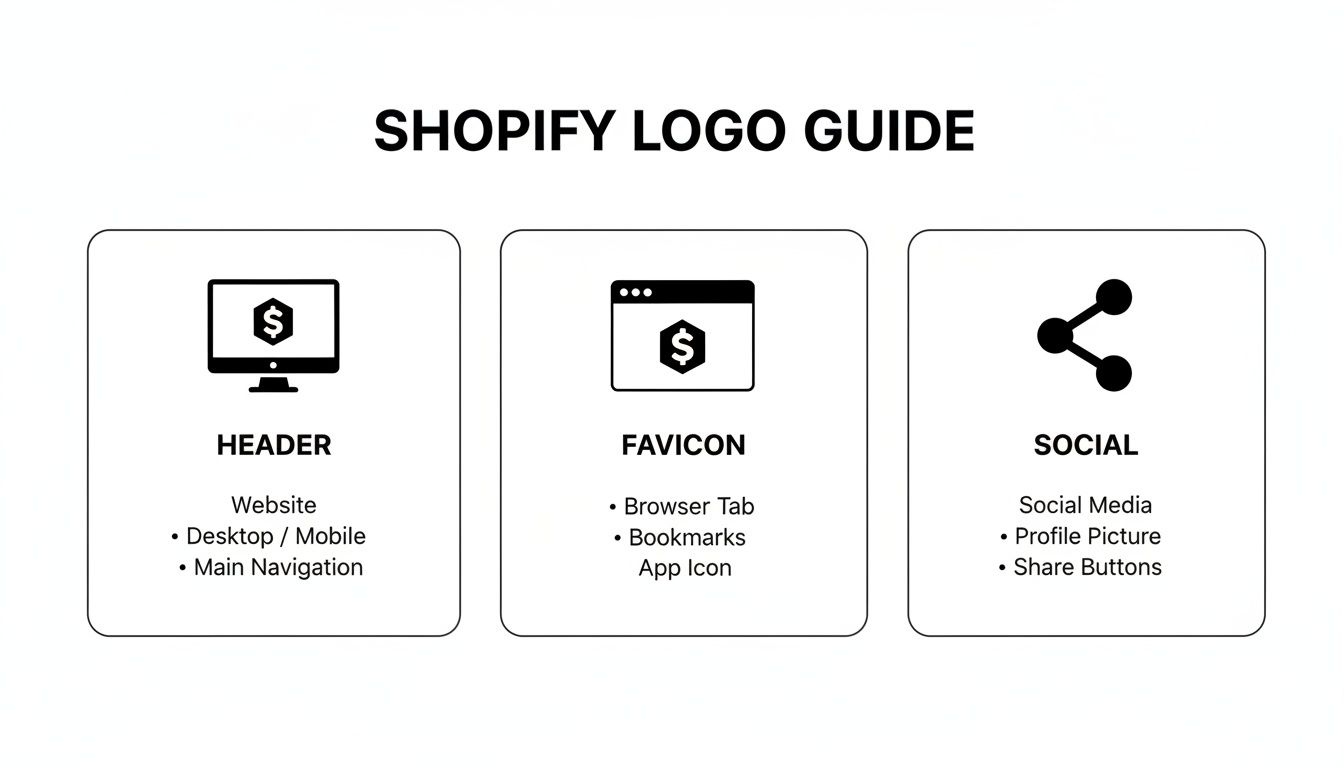
Each of these spots has its own set of rules for sizing and detail, and getting them all right is key to maintaining a strong, consistent brand everywhere your customers see you.
Understanding the Evolving Standards
Shopify's own recommendations for logo sizes have shifted over the years, mostly to keep up with the huge variety of devices and the need for responsive designs. The current guidance points to that optimal 200 x 100 pixels size, but keeping your master file under 450 x 250 pixels gives you the most flexibility. This is a big step up from older, less specific advice. For more great design tips, check out the guide to Shopify image sizes on The Transform Agency.
Why Your Logo Size Is a Conversion Factor
It’s easy to think of your logo as just a visual signature, but in reality, it's a performance asset that can make or break your bottom line. An oversized logo file is one of the most common culprits behind slow page load times—a problem that immediately sours the user experience and sends your bounce rate climbing.
When a logo file is too big, it forces a visitor's browser to work overtime just to download and display it. This delay directly hurts your site’s Core Web Vitals, the crucial metrics Google uses to judge page experience and decide where you land in search rankings.
The Financial Impact of Poor Optimization
A slow-loading logo creates a nasty ripple effect that hits your most important business metrics. Think about it: even a one-second delay in page load can cause a massive drop in conversions. Slow speeds kill customer trust and patience, often sending them straight to a competitor before your page even has a chance to load.
Worse yet, a poorly sized logo can cause Cumulative Layout Shift (CLS). This is that annoying "jump" you see when page elements shift around as the logo finally pops into place. It makes your site feel unstable and unprofessional, compounding the damage. These are exactly the kind of seemingly small issues that are among the top Shopify store design mistakes that hurt sales.
For stores with serious traffic, optimizing the logo size for Shopify is a powerful lever for boosting conversions. For example, merchants seeing 40,000+ monthly pageviews can slash header load times by 15-20% just by using properly sized logos in WebP format. That's a direct improvement to your Core Web Vitals and a big win for your sales.
Mastering Your Header Logo for All Devices
Your header logo is the first thing a visitor sees—it's your digital handshake. Getting the Shopify logo size right is crucial for making a strong first impression, whether someone's browsing on a giant desktop monitor or their phone. The good news is you usually only need one high-quality file to get it done.
I've found that a flexible aspect ratio, like 2:1 or 3:1, works best. This gives your theme enough room to adapt the logo to different header layouts without weird stretching or cropping. For instance, if you upload a logo that's 400px wide by 200px high, Shopify has plenty of data to work with. It can then shrink it down for smaller screens without losing any of that crisp detail, avoiding the blurry mess that happens when you try to scale up a small image.
Customizing Logos for Desktop and Mobile
Modern themes, including our own Booster Theme, give you specific controls for your logo on different devices. This is a game-changer. You can upload separate logo files for desktop and mobile, or just tweak the maximum width for each. This lets you keep your branding consistent while making sure the user experience is top-notch on every screen.
A common strategy is to use your full, wide logo on desktop and then switch to a more compact, square version for mobile. This saves a ton of valuable screen real estate on smaller devices.
Here's a look at what these settings typically look like in the theme editor:
These settings let you dial in the exact width for each logo version, guaranteeing it looks perfect. Taking a few minutes to configure these options is one of the easiest ways to get that polished, professional look. If you're looking for more tips on placement, our guide on how to center your logo on Shopify is a great next step.
Optimizing Favicons and Social Sharing Logos
Your brand identity doesn't stop at your main header logo. It extends to the small but mighty assets that pop up all over the web. People often overlook these, but they play a massive role in creating a professional, cohesive brand presence that drives recognition and brings traffic back to your store.
First up is the favicon, that tiny icon you see in browser tabs, bookmarks, and search history. For the best possible clarity, your favicon file should be 32x32 pixels. While some browsers can handle a 16x16 version, uploading a 32x32 pixel PNG ensures it scales down cleanly without looking blurry. It’s a small detail, but it adds a ton of polish and makes your store instantly recognizable in a sea of open tabs.
Next, let's talk about the social sharing logo. This is the image that appears whenever someone shares a link to your store on platforms like Facebook, X, or LinkedIn. Nailing this is absolutely critical for click-through rates and how people perceive your brand online.
Best Dimensions for Social Sharing
To make sure your link previews look sharp and professional every single time, you need an image specifically sized for social media.
- Recommended Dimensions: 1200 x 628 pixels
- Aspect Ratio: 1.91:1
- Why It Matters: This size is the gold standard for most social media feeds. It prevents awkward cropping and guarantees your brand is represented clearly, just the way you intended.
Shopify makes this easy to manage through its "Social sharing image" setting, which you can usually find under Online Store > Preferences. Just upload a properly sized logo here, and you'll get a crisp, compelling preview every time your store gets shared.
How to Prepare and Upload Your Logo Files
Getting the perfect logo size for Shopify is only half the battle. You still need to prep and upload the files correctly to really bring your brand to life. Before you even think about touching the Shopify theme customizer, a few key steps will make sure your logo looks sharp and loads in a snap.
First things first, you need to pick the right file format. Each one has a specific job, and choosing correctly is a big deal for both quality and site performance.
- PNG (Portable Network Graphics): This is your go-to when you need a transparent background. PNGs keep their quality, which makes them perfect for slapping your logo onto colored headers or image backgrounds without a clunky white box around it.
- JPG (Joint Photographic Experts Group): Best for logos that have a solid background or lots of complex colors and gradients. JPGs can be compressed down to a pretty small file size, but they don't do transparency.
- WebP: This is the modern choice. It offers fantastic compression for both transparent and solid backgrounds. WebP files are way smaller than PNGs and JPGs, giving your page speed a serious boost.
Your Pre-Upload Checklist
Once you've settled on a format, run through this quick checklist. It’ll save you headaches later.
- Optimize File Size: Use a free tool like TinyPNG to compress your logo. This simple step can shrink your file size by over 70% with almost no noticeable drop in quality. For a deeper dive, our guide on Shopify speed optimization has a whole section on image compression.
- Set the Color Profile: Always, always save your logo in the sRGB color profile. It's the standard for the web, and it ensures your brand colors look the same on every browser and device out there.
- Use an SEO-Friendly File Name: Ditch generic names like "logo_final_v2.png." Instead, name your file something descriptive like "my-brand-name-logo.webp." It's a small detail, but it helps search engines understand what the image is, giving you a nice little SEO bump.
With your optimized file ready to go, just head to your Shopify Admin. From there, go to Online Store > Themes, and hit Customize. You'll find the spots to upload your shiny new logo into the header, favicon, and other sections.
Troubleshooting Common Shopify Logo Problems
Even when you think you've nailed the dimensions, logo issues can still sneak up on you. A blurry logo, an annoying white box around it, or wonky sizing on mobile are common headaches that can make a polished site look amateurish. The good news is these problems are usually simple to fix once you know what's causing them.
More often than not, the culprit is a low-resolution file. If your logo looks blurry or pixelated, it's because the original image is too small and your theme is stretching it to fit the space. This is especially noticeable on high-resolution screens like Apple's Retina displays.
Pro Tip: To keep your logo sharp on every device, always upload a file that’s at least double the size of its display area. So, if your header shows the logo at 180px wide, your uploaded file should be at least 360px wide.
Solving Top Logo Issues
Another classic problem is the dreaded white box appearing around a logo that's supposed to have a transparent background. This is almost always because the file was saved as a JPG, a format that doesn't support transparency.
Here’s a quick cheat sheet to diagnose and solve these common frustrations:
- Blurry or Pixelated Logo: Your source file is too small. Go back to your design software, export a larger version, and re-upload it. The ideal logo size for Shopify needs to be high-resolution to avoid this.
- Unwanted White Background: You've got a JPG on your hands. Re-save the logo as a PNG or WebP file, making sure the transparency option is enabled.
- Incorrect Mobile Sizing: This is a theme setting issue. Head into your theme customizer, find the “Header” section, and look for a separate setting to control the mobile logo width or even a spot to upload a different mobile logo.
Shopify Logo Size FAQs
Got questions about your Shopify logo? You're not alone. Here are some quick answers to the most common issues store owners run into.
What Is the Best File Format for a Shopify Logo?
If your logo needs a transparent background, PNG is always the way to go. It completely avoids those ugly white boxes you sometimes see around a logo.
For logos with a solid color background, a well-compressed JPG or a more modern WebP file will get the job done. These usually have smaller file sizes, which is a nice little boost for your page speed. The good news is that nearly all current Shopify themes handle these formats without any problems.
Can I Use Different Logos for Mobile and Desktop?
Yes, you absolutely can—and you probably should. Most modern themes, especially ones built on Shopify's Online Store 2.0, have a specific spot to upload a separate mobile logo.
You'll usually find this in your theme's "Header" settings in the Shopify Customizer. It's perfect for using a more compact, simplified version of your logo that looks better on smaller screens.
Why Does My Logo Look Blurry on Shopify?
A blurry logo is almost always a resolution problem. It happens when you upload an image that's too small, and your theme has to stretch it to fill the space, causing it to pixelate.
The fix is simple: upload a logo that's at least twice the size of the space it will actually fill on the screen. This gives high-resolution "Retina" displays plenty of pixel information to work with, keeping your logo looking sharp and professional.
The Booster Theme takes the guesswork out of this by automatically handling image optimization for you. It ensures your logos load fast and look crisp on every device, helping you build a professional brand without getting bogged down in the technical details. Learn more at https://boostertheme.com.