Think of your Shopify robots.txt file like a friendly but firm bouncer at the front door of your online store. It’s a simple text file, but it holds a lot of power. Its main job is to give instructions to search engine crawlers, like Googlebot, telling them which parts of your site they can check out and which areas are off-limits. Getting this right is a fundamental piece of good SEO.
Why Your Shopify Robots.txt Is a Secret SEO Weapon

At its heart, the robots.txt file is all about managing your crawl budget. Here’s a simple way to look at it: Google gives every website a certain amount of resources to spend crawling its pages each day. If you let Googlebot get lost wandering through low-value areas, it might run out of steam before it even finds your most important product pages or collections.
A well-configured robots.txt file prevents that from happening. It acts as a guide, steering crawlers away from sections that have no business showing up in search results. This focuses Google’s attention right where you want it.
Protecting Your Crawl Budget
Every Shopify store has pages that are useful for customers but offer zero value to search engines. If you don't give crawlers any direction, they'll waste precious time and energy on them.
What kind of pages are we talking about? Here are the usual suspects:
- Faceted Navigation: These are all the URLs created when customers filter collections by size, color, price, etc. They can create a dizzying amount of duplicate content.
- Internal Search Results: The pages that show up when someone uses your site’s search bar.
- Cart and Checkout Pages: These are unique to every user’s session and should never, ever be indexed.
- Customer Account Pages: Login pages, order histories, and other private areas are completely irrelevant for search.
By disallowing these URLs, you make sure Google's resources are spent indexing the pages that actually drive traffic and sales. This isn't just a minor tweak; it’s a cornerstone of solid technical SEO. For more on this, check out our guide to the top 10 best SEO practices for your Shopify store, which builds on these crawl management concepts.
The Evolution of Robots.txt in Ecommerce
The robots.txt protocol isn't new—it’s been around since 1994. But its role has become more critical than ever for modern ecommerce. Since it was officially standardized in 2022, it's become a foundational element of Shopify SEO, especially with the rise of AI-powered search and the ongoing focus on Core Web Vitals.
Mismanaging this simple file can lead to some serious headaches. In global markets where Shopify powers 28% of top direct-to-consumer sites, a poorly configured robots.txt can accidentally block 20-40% of commercial pages, causing a direct hit to visibility and revenue.
Recent analysis just goes to show how damaging these small errors can be. It's clear that getting your robots.txt right is no longer optional—it's essential.
Shopify’s Default Setup
The good news? Shopify gives you a default robots.txt file that handles the basics pretty well right out of the box. It automatically blocks common problem areas like the cart, admin, and checkout pages, giving most stores a solid starting point.
But "default" doesn't always mean "optimal." As your store grows—adding more products, apps, and collections—you might create unique URL patterns that the standard file doesn't cover. This is where customization, especially for Shopify Plus merchants, can unlock some major SEO benefits by fine-tuning crawl instructions for your store’s specific setup.
How to Check (and Change) Your Shopify Robots.txt File
Ready to take a look at your store’s robots.txt file? Finding it is the easy part. Actually changing it? That all comes down to which Shopify plan you’re on. This is a critical distinction, as it dictates whether you have direct control over the file or if you need to use other SEO tactics to guide search engine crawlers.
The first step is simply to see what’s live right now. Pop open a new browser tab, type in your store's full domain, and just add /robots.txt to the end.
Like this: https://yourcoolstore.com/robots.txt
What you're looking at is the public set of rules that tells search engine bots what they should and shouldn't crawl on your site. For most Shopify stores, this file is automatically generated and locked. It’s a pretty solid default, but it’s definitely not a one-size-fits-all solution.
The Great Divide: Shopify vs. Shopify Plus
When it comes to editing your robots.txt file on Shopify, your subscription plan is the gatekeeper. This is honestly one of the biggest technical SEO differences between the two tiers.
- Standard Shopify Plans (Basic, Shopify, Advanced): You can’t directly edit the
robots.txtfile. Shopify manages it for you, which is a safety net to prevent store owners from accidentally making catastrophic SEO mistakes, like blocking their entire site from Google. - Shopify Plus Plans: You get direct access to a special template file called
robots.txt.liquid. This is where the magic happens, giving you the power to add, tweak, or remove rules to fit your store’s unique strategy.
This split exists for a good reason. I’ve seen it happen—a single bad line in a robots.txt file can render an entire store invisible to search engines, causing traffic and sales to flatline overnight. Shopify protects standard merchants from this risk by locking the file down. For Plus merchants, who often run more complex sites and may have technical teams, that flexibility is a massive advantage.
Editing Robots.txt on Shopify Plus
If you’re on Shopify Plus, you’ve got granular control. The editing happens right inside your theme's code editor, where you can add your own directives on top of Shopify’s core rules.
Here’s the path to get there:
- From your Shopify admin, head over to Online Store > Themes.
- Find the theme you want to edit, click the three-dots icon, and choose Edit code.
- In the file explorer on the left, look under the Templates folder and click Add a new template.
- A dialog box will pop up. Select robots.txt from the dropdown menu and hit Create template. This action generates the
robots.txt.liquidfile you'll work with.
You’ll see an interface that looks just like this when creating the new template file.
Once that file is created, you can start adding your own liquid code and directives. For example, you might want to add a rule to block a new AI crawler like GPTBot or stop crawlers from accessing a specific directory created by a third-party app.
What if You Aren't on Shopify Plus?
Don't worry—if you're on a standard Shopify plan, you’re not out of options for managing search crawlers. You just have to use a different set of tools for the job. Instead of blocking bots at the front door with robots.txt, you’ll be putting "do not enter" signs on individual pages using meta tags.
Your best friend here is the noindex meta tag. This snippet of code is added to the HTML <head> section of a page and tells search engines, "You can look at this page, but please don't show it in your search results."
Key Takeaway: The
noindextag is often a more precise tool than aDisallowrule anyway. It achieves the main goal—keeping a URL out of search results—without preventing Google from crawling the page to see the instruction in the first place.
You have a few ways to implement this tag:
- Theme Customization: Many modern themes, including Booster Theme, have built-in options to
noindexcertain page types (like tag pages or paginated collections) with a simple checkbox, no code needed. - Editing Theme Liquid Files: For more targeted control, you can add conditional logic to your
theme.liquidfile. This lets you apply thenoindextag to specific templates, like adding it to all blog tag pages to sidestep duplicate content issues. - Using Shopify Apps: The Shopify App Store is full of great SEO apps that give you a user-friendly dashboard for managing
noindexand other meta tags across your entire store.
So even without direct robots.txt access, these methods give you powerful—and often safer—ways to control how search engines crawl and index your site.
Laying Down the Law: Strategic Rules for Your Crawl Budget
Alright, you know how to find and tweak your robots.txt file (or the workarounds). Now for the fun part: putting it to work for your bottom line. A smart set of rules is one of the best tools you have for protecting your crawl budget, making sure Googlebot spends its limited time on pages that actually drive sales.
Think of it as handing Google a highlighted map to your store's best stuff, with big red X's over the dead ends.
The main goal here is to block URLs that are junk from a search engine's perspective. I'm talking about the thousands of thin or duplicate content pages that Shopify’s features can create without you even realizing it. Left alone, these "crawl-wasters" can eat up a huge chunk of your crawl budget, pushing your important product and collection pages to the back of the line.
Mastering the Disallow Directive
The Disallow directive is your go-to command. You use it to tell search crawlers which URL patterns to stay away from. For any Shopify store, this almost always means blocking the parameterized URLs created by collection filters, internal site search, and even some pagination.
From what I've seen in countless SEO audits, an unoptimized Shopify robots.txt can let 70% of a crawl budget get wasted on these useless pages. That's not an exaggeration. Cleaning this up has a massive impact. One study even saw a 32% jump in organic impressions within just three months of blocking filter patterns.
Let's dig into the most common and effective rules you should be using, especially if you're on Shopify Plus.
Block Faceted Navigation and Filters
When a customer filters a collection by size or color, Shopify tacks on parameters like ?filter.v.price.gte= to the URL. Every single combination creates a brand new, low-value URL that Google might try to crawl.
You can kill all of them with one elegant rule using a wildcard (*):
Disallow: /collections/*?filter.*
That single line tells crawlers to just ignore any URL in your collections that has the ?filter. parameter. Boom. Thousands of potential duplicate pages are no longer a problem.
Keep Internal Search Results Out of Google
Your internal search results are vital for shoppers, but they are SEO poison. They are the absolute definition of thin content and have no business being indexed.
Block them all with this simple directive:
Disallow: /search?q=*
This rule stops any URL from your store's search function from being crawled. It's a non-negotiable best practice for every single e-commerce site out there.
The Big Decision: Shopify Plus vs. Standard Plans
How you actually implement these rules comes down to one thing: which Shopify plan you're on. If you're a Shopify Plus merchant, you can edit the robots.txt.liquid file directly and set these sitewide rules. If you're on a standard Shopify plan, your strategy changes to using noindex tags on a more granular level.
This chart makes the decision process crystal clear.
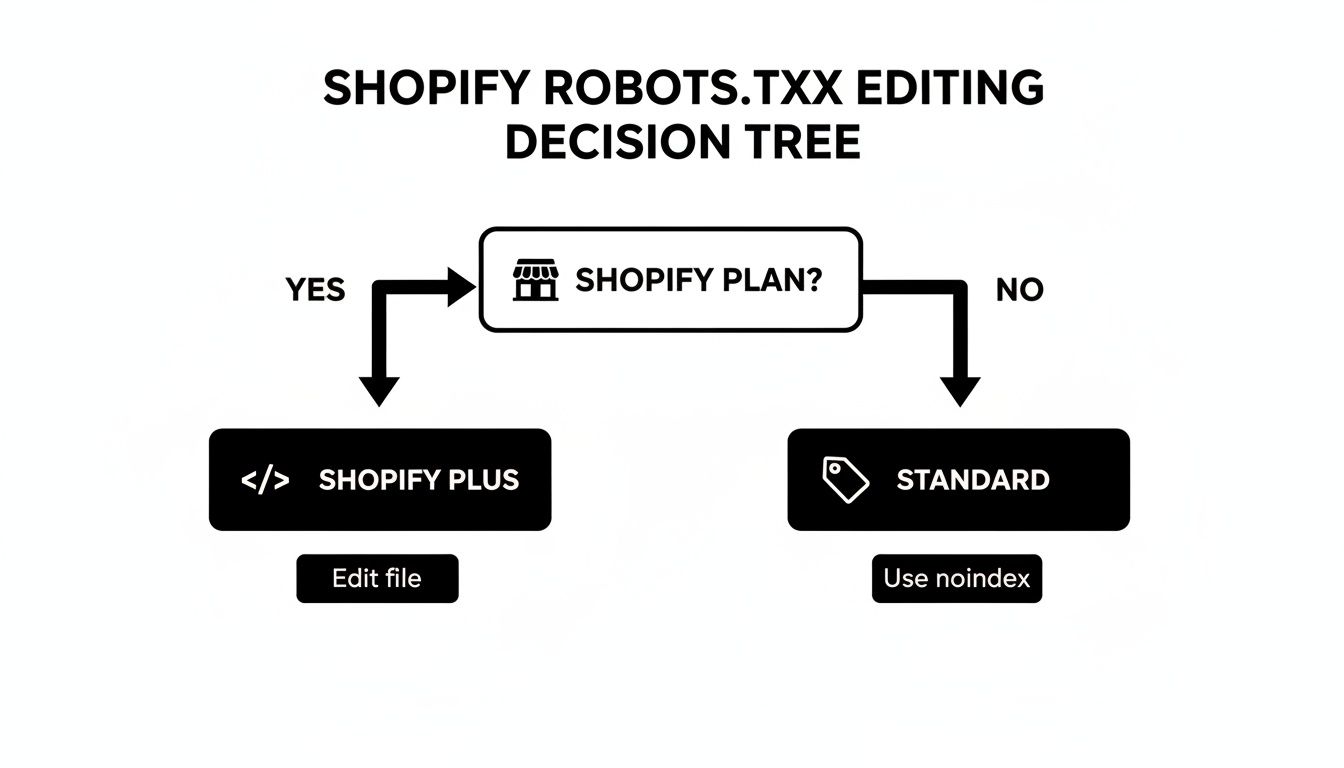
As you can see, Shopify Plus gives you the power to edit the file directly for broad, site-wide control. Standard plans force you into a more page-by-page approach using meta tags to manage crawling.
Knowing When to Use Allow
While Disallow does most of the heavy lifting, the Allow directive is a precision tool. You can use it to carve out exceptions from your broader Disallow rules.
For example, let's say you have a special curated collection at /collections/new-arrivals/ and you do want a specific filter indexed because it's highly valuable. You could set up your rules like this:
Allow: /collections/new-arrivals/?filter.p.product_type=Featured Disallow: /collections/*?filter.*
See what's happening here? You're specifically allowing one URL pattern before the broader disallow rule kicks in. It's a scalpel for when you have complex SEO needs.
Critical Warning: Be extremely careful not to block essential files. A shockingly common—and catastrophic—mistake is accidentally disallowing something important. A rule like
Disallow: /assets/could prevent Google from seeing your CSS and JavaScript, meaning it can't render your pages correctly. This will absolutely tank your rankings. Always, always test your rules before setting them live.
Don't Forget to Check Your Sitemap Directive
One line you should always find in your robots.txt file is the Sitemap directive. Shopify handles this for you automatically, so it will look something like this:
Sitemap: https://yourcoolstore.com/sitemap.xml
This line is a direct pointer for search engines, leading them straight to your sitemap—the complete list of every important page you want them to find. It’s a foundational piece of an efficient crawl strategy. You don't have to add it, but you should always double-check that it's there and points to the right URL.
Getting your robots.txt in order is a high-impact technical SEO task that has a direct effect on how search engines perceive your store. When you guide crawl budget toward your most valuable pages, you improve your site's overall indexing efficiency. This often has a positive ripple effect on performance metrics, too. For a deeper look at how technical health and site speed are linked, check out our complete guide to Shopify speed optimization.
Testing Your Robots.txt Changes Before Going Live
Editing your robots.txt file without testing it first is a huge, unnecessary risk. Think of it like launching a rocket without a pre-flight check. A single misplaced character or an overly zealous Disallow rule can instantly make your most important pages invisible to search engines, causing your organic traffic to crater.
This is a step you absolutely cannot afford to skip.
Luckily, you don't have to cross your fingers and hope for the best. Google Search Console has a powerful, free tool built for exactly this purpose: the robots.txt Tester. It’s your digital safety net, letting you simulate how Googlebot will interpret your new rules before they ever go live on your store. This ensures your optimizations work as planned without any catastrophic side effects.
Using the Google Search Console Robots.txt Tester
Getting started is pretty straightforward. You'll need to open the tester tool from within your store's Search Console property. Instead of waiting for Google to eventually find and crawl your updated file, you can just paste your new or modified robots.txt code right into the tool’s editor for immediate feedback.
Once you pop your code in, the tester instantly scans it for syntax errors or logical contradictions. This is an invaluable first check. If you’ve made a typo, the tool will flag the problematic line, saving you from a potentially devastating mistake.
The real magic, however, is its ability to check specific URLs against your proposed rules. This is where you confirm that your directives are actually doing what you want them to do. The interface lets you plug in any URL from your store and see instantly if it would be allowed or blocked by the code you've written.
As the screenshot from Google's documentation shows, you get an editor for your code on one side and a URL testing bar below it, which gives you a clear "Allowed" or "Blocked" verdict.
Running Practical URL Tests
To do this right, you need to check a variety of URLs that represent different parts of your Shopify store. Don't just test your homepage and call it a day. Get granular to make sure you haven't accidentally firewalled something important.
Here’s a quick checklist of URLs you should always test:
- A Key Product Page: Grab a URL for one of your best-sellers. The result here should always be Allowed.
- A Main Collection Page: Pick a primary category page. This also must be Allowed.
- A Filtered Collection URL: Go to a collection, apply a filter (like
/collections/shoes?filter.v.color=Red), and copy that URL. You want to see this come back as Blocked. - An Internal Search Result URL: Run a search on your own store and test that results page URL (e.g.,
/search?q=t-shirt). This should absolutely be Blocked. - Critical Asset Files: Find a link to a core CSS or JavaScript file from your theme. These need to be Allowed so Google can properly render your pages.
Running through these specific tests will give you the confidence to push your changes live, knowing your rules are correctly blocking crawl-wasters while leaving your money-making pages wide open for search engines.
Monitoring After You Go Live
Once your tested robots.txt code is up on your site, you're not quite done. The final piece of the puzzle is to keep an eye on Google Search Console to confirm everything is working as expected out in the wild.
The best place to verify your changes is the Pages report (what used to be called the Coverage report). Specifically, you want to watch the section labeled 'Blocked by robots.txt'.
In the days and weeks after you publish your update, you should see the number of blocked URLs in this report begin to climb as Google finds and processes your new rules. This is a great sign! It means your directives are being followed.
On the other hand, if you see a sudden, massive spike in blocked pages—or worse, if critical product or collection URLs start popping up in this report—you'll know immediately that something has gone wrong and you can jump in to fix it. This final monitoring step closes the loop, turning a risky guess into a measured and successful SEO tactic.
How Booster Theme Amplifies Your SEO Efforts

Choosing a high-performance theme like Booster is one of the smartest SEO moves you can make. A fast site with excellent Core Web Vitals is a massive signal to Google. But that speed is only half the battle if crawlers can't efficiently find and index your most important pages.
Think of a smart robots.txt file as the perfect partner to a fast theme. It guides search engines to focus on pages that actually make you money, ensuring your Booster Theme's technical excellence isn't wasted on dead-end URLs. This synergy is what separates top-ranking stores from everyone else.
Managing Booster Theme's Advanced Features
Booster Theme is loaded with features designed to improve user experience and drive sales, from advanced filtering to predictive search. While these are fantastic tools for shoppers, they can also generate thousands of parameterized URLs that have zero SEO value.
For instance, when a customer filters a collection by color, size, and price, Shopify creates a unique URL for that specific combination. You definitely don't want Google indexing it. Letting Googlebot chase down all these variations is a surefire way to burn through your crawl budget.
The goal is to disallow these dynamically generated URLs while making sure the core features of your theme remain fully functional for users and visible to Google. You want to block the noise, not the signal.
This is where specific Disallow rules become crucial for Booster Theme users. By strategically blocking certain URL patterns, you protect your crawl budget and let the theme's powerful features shine without creating an SEO nightmare. It’s all about precise crawl management.
Recommended Rules for Booster Theme Users
While every store has unique needs, Booster Theme's architecture is consistent. Many of the filtering and sorting options create URL parameters that are safe to block across the board. If you're on Shopify Plus and have access to robots.txt.liquid, here are a few patterns that are almost always beneficial to disallow.
Disallow: /collections/*?sort_by=*: This blocks all the different URLs created by sorting options.Disallow: /collections/*?filter.*: This is a powerful rule that blocks faceted navigation results from being crawled.Disallow: /*?variant=*: This rule stops Google from trying to index a separate URL for every single product variant.
Shopify's robots.txt optimization has a direct impact on SEO success. For the 40,000+ stores running on Booster Theme, smart crawl management is non-negotiable. Targeted optimizations like these have shown a 55% reduction in "crawl waste," freeing up Google's resources to focus on the product and collection pages that drive revenue.
By pairing Booster Theme’s best-in-class performance with a clean, optimized robots.txt file, you create the ideal environment for Google to find and reward your best content. For a deeper look into this relationship, see our guide on how your theme choice impacts your Google rankings.
Common Questions About Shopify Robots TXT
As store owners dive deeper into SEO, the same questions about Shopify's robots.txt file tend to pop up. And for good reason—a small mistake here can cause major SEO headaches down the road. Let's clear up some of the most common ones.
Can I Block a Single Product Page Using Robots TXT?
Technically, if you're a Shopify Plus merchant, you could write a Disallow rule for a specific product URL. But honestly, you almost never should. It's the wrong tool for the job.
The better, cleaner, and more direct way is to use a noindex meta tag on that page. This sends a crystal-clear signal to Google. It lets the crawler visit the page, read the "do not index" instruction, and then promptly remove it from search results.
Why is this better? Blocking a page with robots.txt can create a strange situation where the URL still appears in search results, but with no title or description. This happens if other websites link to it. To a potential customer, it just looks broken, which isn't great for your brand's credibility.
I Messed Up My Robots TXT and My Traffic Dropped! How Do I Fix It?
First, take a breath. It happens, and it's completely fixable. The top priority is to stop any further damage.
The quickest fix is to go into your theme's code and simply delete your custom robots.txt.liquid file. This immediately reverts your store back to Shopify’s safe, default settings. If you have a backup, restoring the previous version works too. This ensures your site is open for business the next time Googlebot stops by.
Once that's done, head straight over to Google Search Console.
- Use the URL Inspection tool on your homepage and a few key product pages. You're looking for the green light confirming Google can access them again.
- Before you even think about re-uploading a custom file, paste your corrected code into the robots.txt Tester to make sure it's valid.
After your corrected file is live, you can use the URL Inspection tool to request re-indexing for your most important pages. This can help nudge Google to speed up the recovery.
Does Editing My Robots TXT File Affect My Store Speed?
Directly? Not at all. The robots.txt file is just a tiny text file. It has zero impact on your site's loading time, Core Web Vitals, or the experience your human visitors have.
However, its indirect impact on your overall SEO performance is huge.
By guiding Googlebot away from low-value pages, you're making sure it spends its limited time and resources crawling and indexing your most important, fastest-loading pages. A well-tuned
robots.txthelps Google build a higher-quality index of your site, which is a big factor in achieving better search rankings over time.
Think of it this way: you want Google to judge your store based on your beautiful, high-converting product pages, not a bunch of thin, slow-loading filter URLs. A smart robots.txt file makes that happen.
Should I Block New AI Crawlers Like GPTBot?
With the explosion of AI, new crawlers like OpenAI's GPTBot are constantly scraping the web to train models like ChatGPT. The key difference is that these bots, unlike Googlebot, don't send any traffic back to your site.
Blocking them comes down to a business decision. If you've spent a ton of time and money on unique product descriptions, blog content, or other proprietary information, you might not want AI models using it for free.
If that's the case, you can add a simple rule to your robots.txt.liquid file to block OpenAI's crawler:
User-agent: GPTBot Disallow: /
This is a straightforward way to protect your content from being used to train ChatGPT and similar models. It's all about protecting your intellectual property.
A well-managed robots.txt file is a cornerstone of technical SEO, but it works best when paired with a high-performance foundation. Booster Theme is engineered for speed and conversions, ensuring that when you guide Google to your key pages, those pages deliver an exceptional experience that search engines and customers love. Discover how Booster Theme can elevate your Shopify store today.